A case note · one page
How I made a website with AI Quicksite
I started with one plain sentence and ended up with a site I could open in a browser. Here is the whole thing, in the order it happened.
What I typed
This was the entire brief. No template, no settings panel, no list of pages to tick off.
What came back
-
It read the sentence
It picked out that this was a personal portfolio, who I am, and the four things the site had to cover — my work, about, rates and contact.
-
It planned the pages
A home page plus the subpages a designer's site needs, with a working navigation between them.
-
It wrote the site
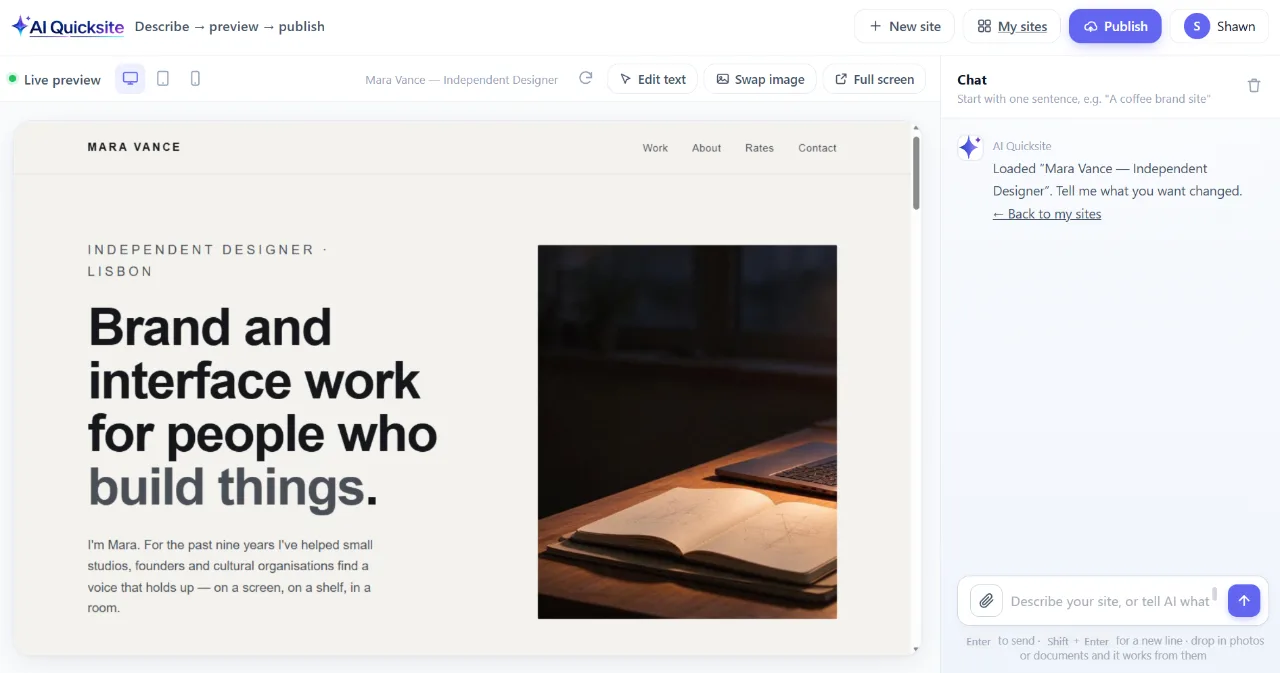
Layout, colours, headings and body copy, all in one go. The pages appeared in the preview panel while it worked.
-
It showed me the result
Not a mock-up — a real preview I could scroll through and click around, page to page.
What I changed
You can keep going after the first version. These are the kinds of edits you can ask for — one line each, typed the way you would say them out loud.
“Make the headline smaller and give it more room above.”
Adjust the heading on the home page and leave the rest of the layout alone.
“Use this photo instead of the one on the opening screen.”
Swap in your own picture, keeping the same framing.
“Add a short note about my process under the work section.”
Add a section of copy where you want it, without disturbing anything around it.
That was the whole process — a sentence, a site, then a handful of small corrections in ordinary English. I never opened a settings panel or looked at the code. If you can describe the site you want, you can get one.
Try AI Quicksite →